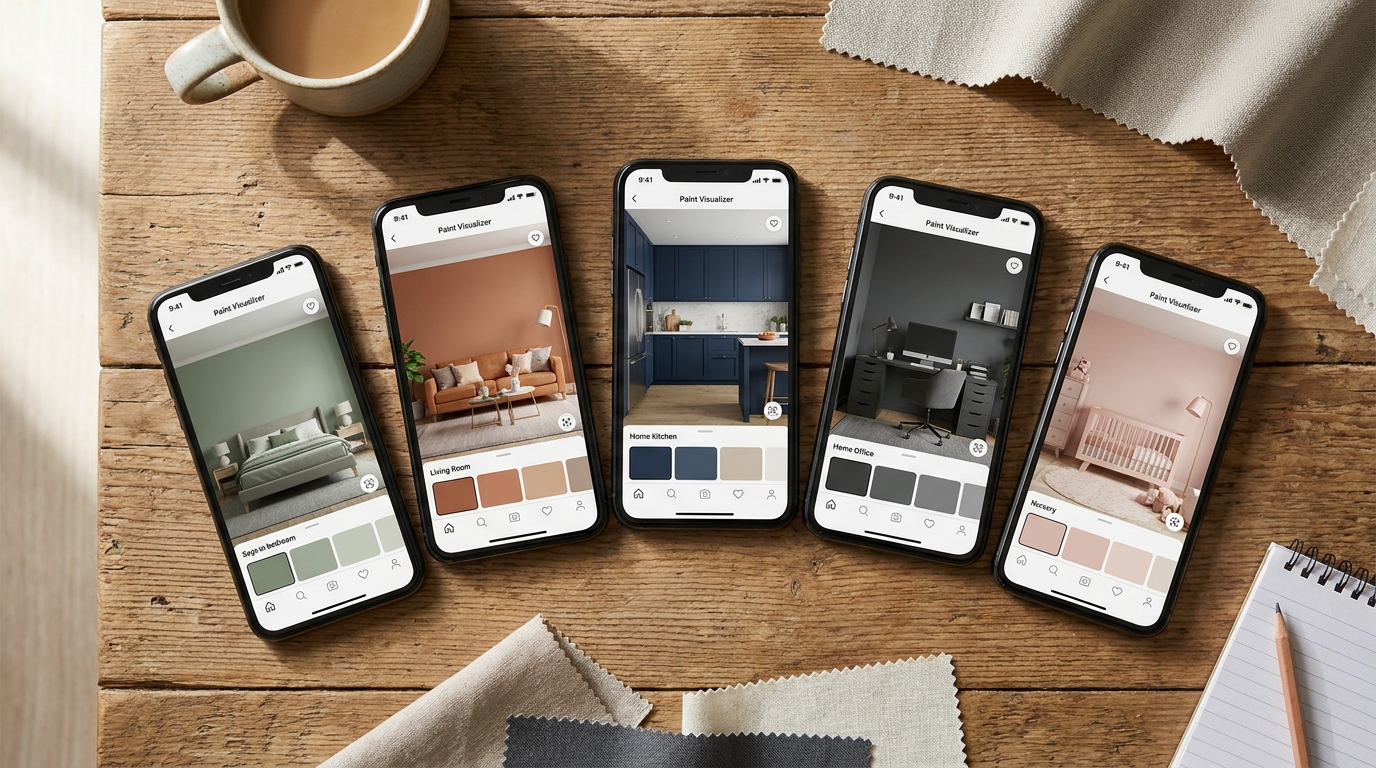
Short answer: AI-powered visualizers like Muro give you photorealistic results that preserve your room's actual lighting. Brand-specific apps (ColorSnap, Color Portfolio) are free but use basic color filters that look nothing like real paint on a wall.
I've been obsessed with paint visualization technology for a while now. Partly because I've made enough bad color decisions to know that "it looked good on the chip" is the biggest lie in home improvement. And partly because the technology has gotten genuinely good in the past year.
So I downloaded every paint visualizer app I could find, pointed them all at the same room, and compared the results. Here's what I learned.
What I tested
I used the same photo — my living room with southwest-facing windows, warm afternoon light, beige carpet, and white trim — across every app. I applied the same color (or as close as possible): a medium sage green similar to Sherwin-Williams Retreat SW 6207.
The goal: which app produces a result that looks most like actually painting the wall?
The apps, ranked
1. Muro — Best overall
What it does right: Muro uses AI that actually understands your room. It sees the light hitting your wall from the left, the shadow cast by the bookshelf, the subtle color shift near the window. The result looks like you painted the wall and took a new photo.
The details:
- 27,000+ colors from 14 brands (Sherwin-Williams, Benjamin Moore, Behr, Farrow & Ball, Caparol, Brillux, and more)
- Works with any photo — no special angles needed
- Color matching from inspiration photos
- Batch mode: test up to 12 colors at once
- Three quality levels up to 4K resolution
What could be better: Requires a subscription. No Android version yet.
Best for: Anyone who wants to see what a color actually looks like before buying paint. The accuracy gap between Muro and filter-based apps is immediately obvious.
2. Sherwin-Williams ColorSnap Visualizer — Best free option
What it does right: It's free, and the color database is solid if you're already committed to Sherwin-Williams. The fan deck browser is nice for exploring colors by family.
The reality check: The visualization is a basic color overlay. It replaces your wall with a flat color — no shadow preservation, no lighting variation. Your wall looks like someone used the paint bucket tool in Photoshop. Fine for getting a general sense of hue, but don't expect it to look like your actual room.
Best for: People who already know they're buying Sherwin-Williams and just want to browse the catalog.
3. Benjamin Moore Color Portfolio — Good catalog, basic visualization
What it does right: Beautiful color organization. The "Color Capture" feature (matching colors from photos) works reasonably well for finding Benjamin Moore equivalents.
The reality check: Same flat-filter approach as ColorSnap. The visualization doesn't account for room lighting at all. A north-facing room and a sun-drenched room get the identical result, which defeats the purpose.
Best for: Benjamin Moore loyalists who want to explore the collection.
4. Behr ColorSmart — Decent for Behr colors
What it does right: Integrated with Home Depot purchasing. You can go from visualization to ordering paint samples in a few taps.
The reality check: The visualization quality is the weakest of the brand apps. Very flat, very artificial. The convenience of direct ordering doesn't help if the preview doesn't look like the real thing.
Best for: People doing a quick Home Depot run who want a rough sense of color.
5. Dulux Visualizer (Europe/UK) — Best AR approach
What it does right: The live AR mode — point your camera at a wall and see color in real-time — is fun and gives you an instant gut reaction. Available across European and UK markets.
The reality check: AR visualization quality is limited by real-time processing constraints. It can't match what a dedicated AI does with a still photo. Colors tend to look washed out, and the AR tracking can be jumpy on textured walls.
Best for: Quick color exploration if you're in a Dulux market and want instant previews.
The big difference: filters vs. AI
Here's what most people don't realize. The brand apps (ColorSnap, Color Portfolio, ColorSmart) all work the same way: they detect your wall area, then replace it with a flat color. Shadows gone. Lighting variations gone. Wall texture gone.
That's why the preview never looks like actual paint on a wall. Real paint doesn't erase your room's character — it interacts with it.
AI-based apps take a fundamentally different approach. They analyze the light sources, shadow patterns, and surface texture in your photo, then generate a new image that shows what the wall would look like if it were actually painted. The shadows stay. The light gradient stays. The architectural details stay.
It's the difference between coloring inside the lines and actually understanding what paint does.
Which one should you use?
It depends on what you need:
- "I want to see what this color actually looks like in my room" → Use an AI-powered app like Muro. The realism matters when you're about to spend $200+ on paint.
- "I just want to browse a specific brand's colors" → The brand's free app is fine for catalog browsing. Just don't trust the visualization.
- "I want a quick gut check before going to the store" → Any of these will give you a general sense of whether you're in the right color family.
The bottom line
Paint visualizer apps have gotten dramatically better in the past two years, but there's still a massive quality gap between AI-powered visualization and the basic color filters that most free apps use.
If you're choosing between paying for accurate visualization and trusting a free color filter — think about what you're really saving. A subscription costs less than one wrong paint sample. And definitely less than repainting a room because "warm gray" turned out to be "sad purple" under your lighting.
Trust me on that one. I learned the hard way.